If your store uses Shopify Tax to work out tax at checkout, the way its fees are discounted is changing. Until now the free discount reset at the start of each calendar year. From January 1, 2027 it won't. Instead, it is based on your store's total sales since it opened. Once you pass the line, the discount does not come back the next January.
That is a small change on paper. For a growing store it turns a cost you could ignore into a permanent line in your costs. This guide covers what changed, who it affects, how to check where you stand, and how to build Shopify Tax fees into your prices and margins before they show up on a bill.
What Shopify announced
The change was published in the Shopify Changelog on November 11, 2026. Shopify can change details later, so check the post and your Shopify admin before you make decisions based on it.
Here is what the post says:
- Start date: January 1, 2027.
- The new basis: the Shopify Tax free discount is based on each store's lifetime global sales. It no longer resets each calendar year.
- The threshold: Shopify Tax fees are fully discounted until a store reaches 100,000 in lifetime global sales.
- The currency: the 100,000 is measured in the store's pricing currency, which is set by the store's location.
- What counts: all sales count toward the threshold, wherever your customers are.
- What stays the same: per-order fee rates and any existing annual billing caps are unchanged.
- What you have to do: nothing, according to Shopify. You can review your tax settings in Shopify admin at any time.
Shopify Tax keeps working the same way at checkout. It still calculates tax automatically and keeps up with rate changes. The only change is how long the fees stay free.
The Shopify Tax free threshold by location
The number is always 100,000. The currency depends on where your store is based.
| Store location | Pricing currency | Threshold |
|---|---|---|
| Canada | CAD | 100,000 CAD |
| European Union | EUR | 100,000 EUR |
| United Kingdom | GBP | 100,000 GBP |
| Everywhere else | USD | 100,000 USD |
Note the word "global". If you are a UK store and half your orders go to customers abroad, those orders still count toward your 100,000 GBP. You can't stay under the line by selling more overseas.
Who is affected, and when
The changelog sorts stores into two groups.
Below the lifetime sales threshold. Your Shopify Tax fees stay fully discounted until your store reaches 100,000 in lifetime sales. Nothing changes for you on January 1, 2027. But the clock no longer restarts each year, so every sale moves you closer to the line for good.
At or above the lifetime sales threshold. Your store won't get a new annual free discount on January 1, 2027. From then on, Shopify Tax fees apply to eligible orders where Shopify Tax calculates tax.
The second group is the one to watch. If your store has been running for a few years, it may already be past 100,000 in lifetime sales even if no single year came close. Under the old reset, that didn't matter. From 2027 it does.
Two details from the post are worth reading twice:
- Fees apply to eligible orders where Shopify Tax calculates tax. Not every order may be eligible. Shopify's tax pricing page, linked from the changelog post, is where to check which orders count for your store.
- Per-order fee rates and existing annual billing caps don't change. If your store has a yearly cap on Shopify Tax fees today, it still applies. Look up the rate and any cap for your store before you estimate anything.
How to check how close you are to 100,000 in lifetime sales
You don't need anything special for this. An hour with your Shopify reports and a spreadsheet is enough.
Step 1: Confirm your pricing currency
Check which location your store is set to. That decides whether your 100,000 is in CAD, EUR, GBP or USD. A store based in Australia, for example, falls under "everywhere else" and is measured in USD.
Step 2: Add up lifetime sales
Use your sales reports in Shopify admin and set the date range to cover the whole life of the store. Include every country you sell to. If the store has been running for years, export the data year by year and total it in a spreadsheet.
The changelog doesn't spell out exactly which amounts Shopify includes in "lifetime global sales", for example whether shipping or refunds change the figure. If you are close to the line, check Shopify's tax pricing page or ask Shopify support rather than guessing. If you are far below or far above, the exact definition matters less.
Step 3: Estimate when you will cross the line
If you are below the threshold, work out how many months you have left. Take your lifetime total, subtract it from 100,000, and divide by a realistic monthly sales figure. Use a few recent months, not your best month, and remember your busy season can pull the date forward.
A worked example with made-up numbers: a US store ends 2026 with 82,000 USD in lifetime sales and sells about 3,000 USD a month. It has 18,000 USD to go, which is six months at that pace. Shopify Tax fees would start reaching it around June 2027, and stay.
The point of the chart: under a yearly reset, a store selling 36,000 a year might never pay. Under a lifetime threshold, the same store crosses the line eventually and pays from then on.
Step 4: Find your fee rate and any cap
Shopify says per-order fee rates are unchanged, but this article won't quote them, because they can differ and can change. Look them up for your store, along with any annual billing cap. Write both down next to your lifetime sales figure.
Putting Shopify Tax fees into your costs and margins
Once you know a fee is coming, treat it like a payment processing fee: a cost that comes with each eligible order. The mistake to avoid is leaving it out of your margin sums because it used to be free.
Work out the cost per order
Take a typical order and list everything it costs you. Then add the Shopify Tax fee as its own line.
On a healthy order like this one, the fee is a small slice. That doesn't make it ignorable. It comes off every eligible order, every month, for good.
Check your thin-margin products first
A fee hurts most where margin is already thin. Compare the margin per order on a few products before and after the fee.
In this example, Product A barely notices the fee. Product C was already earning very little on each sale. If it also carries returns, discounts or ad costs, the fee could push it from a small profit to a loss. Those are the products to look at first.
Your options once the fee applies
You have a handful of honest choices. None is right for every store.
- Absorb it. If your margins are healthy, the fee may simply be a cost of doing business. Note it in your cost sheet and move on.
- Raise prices a little where you have room. If you are already cheaper than the stores you compete with on some products, a small increase on those may cover the fee without costing you sales.
- Raise average order value. Bundles, multi-packs and a sensible free-shipping threshold can make each order earn more. Check how the fee is charged for your store before assuming this helps.
- Rethink low-margin lines. If a product barely made money before, the fee is a good moment to ask whether to reprice it, source it cheaper or drop it.
- Compare how you calculate tax. Shopify Tax saves you work: it calculates tax at checkout and keeps up with rate changes. Weigh the fee against the time and risk of handling tax another way. An accountant who knows your markets can help with that decision.
Our guide on how to price products covers building a price from costs up, if you want to redo the sums properly.
Raising prices without guessing
Option 2 is where stores often go wrong. A price rise that looks small on your cost sheet can be large next to a competitor selling the same item. Before you change anything, look at where each product sits against the market.
You can do this by hand. List your products that would gain most from a small increase, find the other stores selling them, and record their prices. A spreadsheet works fine for a few dozen products - our competitive pricing analysis how-to walks through it. If you don't know who to compare against, start with how to find your competitors.
What you are looking for is simple: products where you are below the middle of the market. Those are the ones where a small rise to cover a new fee is least likely to cost you sales. Products where you are already the most expensive are the ones to leave alone.
If you'd rather not keep that spreadsheet up to date, a price monitoring tool can do it. PriceSway, for example, finds the stores selling your products from your own catalogue and shows a table of each product with its cost, your current price and the cheapest, middle and highest competitor price. You can set a rule such as "stay at the middle competitor price, with a floor of cost plus a percentage" and see the price it gives each product. It shows prices and changes none - you decide and apply them yourself.
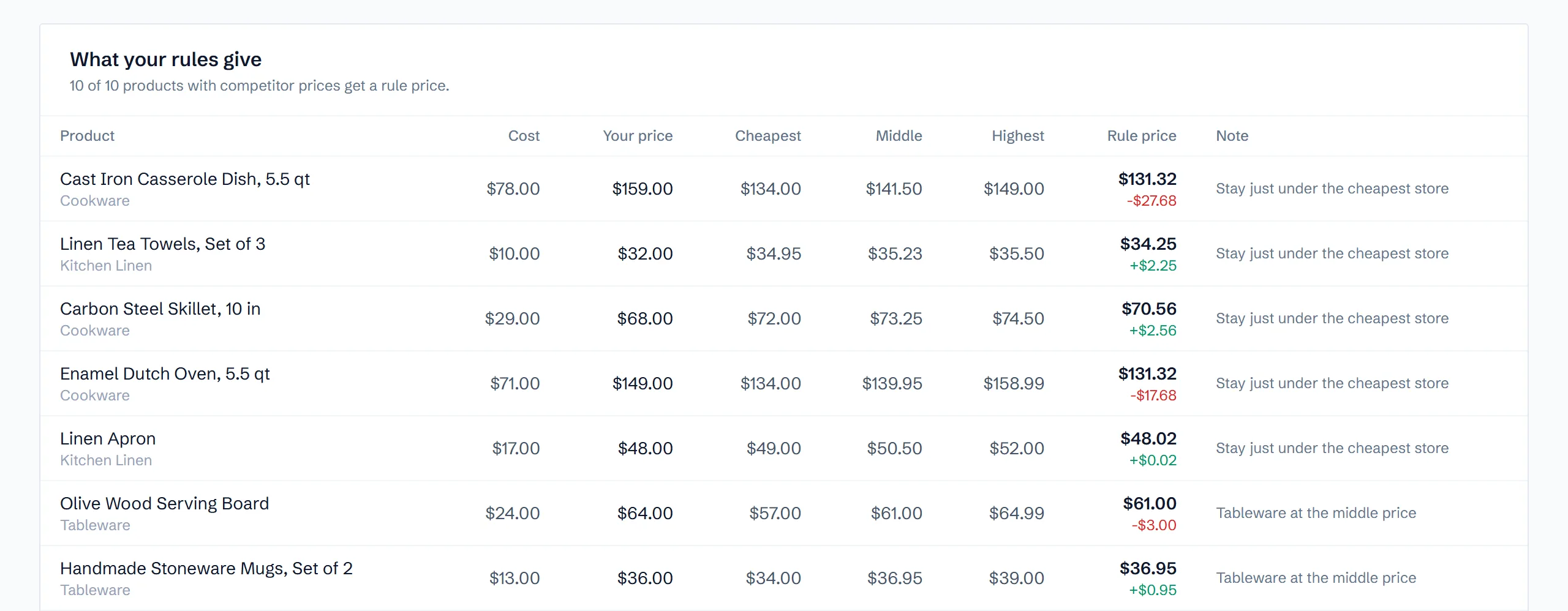
If you go that route, put your new per-order costs into your product costs first, so the floor reflects the fee. PriceSway plans start at US$49 a month with a 14-day free trial that needs no card; the home page has the details, and the free pricing audit shows your store's price structure without an account. Other tools exist too, and a spreadsheet is a perfectly good start.
A short checklist before January 1, 2027
- Confirm your store's pricing currency: CAD, EUR, GBP or USD.
- Total your lifetime sales across all countries.
- If below 100,000, estimate the month you will cross it.
- If at or above, expect Shopify Tax fees on eligible orders from January 1, 2027.
- Look up your per-order fee rate and any annual billing cap.
- Add the fee to your cost per order in your margin sheet.
- Recheck margins on your lowest-margin products.
- Before raising prices, check where each product sits against other stores.
- Review your tax settings in Shopify admin.
- Reread the changelog post before acting, as details may change.
Shopify says no action is required, and for the tax itself that's true: checkout keeps working the same way. The action is on your side, in your costs. A fee that stays free for a while and then never goes away is easy to forget about. Put it in your numbers now and it won't catch you out later.
Frequently asked questions
When does the Shopify Tax free discount stop resetting each year?
From January 1, 2027, according to the Shopify Changelog post published on November 11, 2026. After that date the free discount is based on lifetime global sales instead of resetting each calendar year.
What is the Shopify Tax free threshold?
Shopify Tax fees are fully discounted until a store reaches 100,000 in lifetime global sales. The amount is in the store's pricing currency: CAD in Canada, EUR in the European Union, GBP in the United Kingdom and USD everywhere else.
Do sales to customers in other countries count toward the 100,000 lifetime sales?
Yes. Shopify says all sales count toward the threshold, wherever your customers are.
Are Shopify Tax fee rates going up?
No. The changelog says per-order fee rates and any existing annual billing caps stay the same. What changes is that the free discount no longer comes back each January once a store passes the threshold.
Do I need to change anything in Shopify for this?
Shopify says no action is required and you can review your tax settings in Shopify admin at any time. It is still worth checking your lifetime sales and adding the fee to your cost per order so your margins stay accurate.